

Stuttering frame rates, unexpected lag spikes, and inconsistent performance plague even capable gaming PCs. Windows is designed for everyone, not specifically gamers, leaving default settings that prioritize general computing over gaming excellence. This guide walks you through essential Windows tweaks and system configurations that eliminate performance bottlenecks, boost responsiveness, and unlock your hardware’s full potential. You’ll learn practical optimization steps that transform frustrating gameplay into smooth, competitive-ready experiences without spending a dollar on upgrades.
Table of Contents
Key takeaways
| Point | Details |
|---|---|
| Windows defaults hurt gaming | Default settings prioritize general use over gaming, causing stutters and reduced frame rates. |
| Power mode prevents throttling | Setting power to best performance stops CPU and GPU from slowing down during intense gameplay. |
| Startup apps drain resources | Disabling unnecessary background programs frees RAM and CPU for games. |
| Game Mode prioritizes performance | Enabling this Windows feature gives games higher system priority over other processes. |
Understanding why PC games need optimization
Your gaming rig might pack impressive specs, but Windows treats it like any office computer. Default configurations serve casual users, students, and professionals equally, which means your system runs dozens of background processes that have nothing to do with gaming. Email sync, cloud storage, system telemetry, and update checks all compete for the same CPU cycles and memory your games desperately need.
This general-purpose approach creates three core problems. First, power management features throttle your CPU and GPU to save energy, cutting performance exactly when you need it most. Second, background applications consume RAM and processing power that could boost frame rates. Third, Windows assigns equal priority to all running programs, so your competitive shooter competes with antivirus scans and browser tabs for system attention.
The impact shows up as frame drops during intense combat, input lag that costs you kills, and texture pop-in that breaks immersion. Your gaming hardware sits underutilized because the operating system doesn’t recognize gaming as a priority workload. Graphics cards capable of 144 FPS deliver 60 with stutters. Processors that should handle streaming and gaming simultaneously struggle with basic tasks.
Key issues that hurt gaming performance:
- CPU and GPU throttling from power-saving modes
- Background processes consuming system resources
- Low process priority for game executables
- Unnecessary visual effects stealing GPU cycles
- Automatic updates interrupting gameplay
Optimization removes these artificial limitations. You’re not overclocking or modifying hardware. You’re simply configuring Windows to recognize gaming as your primary use case and allocate resources accordingly. The difference between default and optimized settings can mean 20-30% better frame rates and dramatically improved consistency.
Preparing your PC: essential Windows settings for gaming
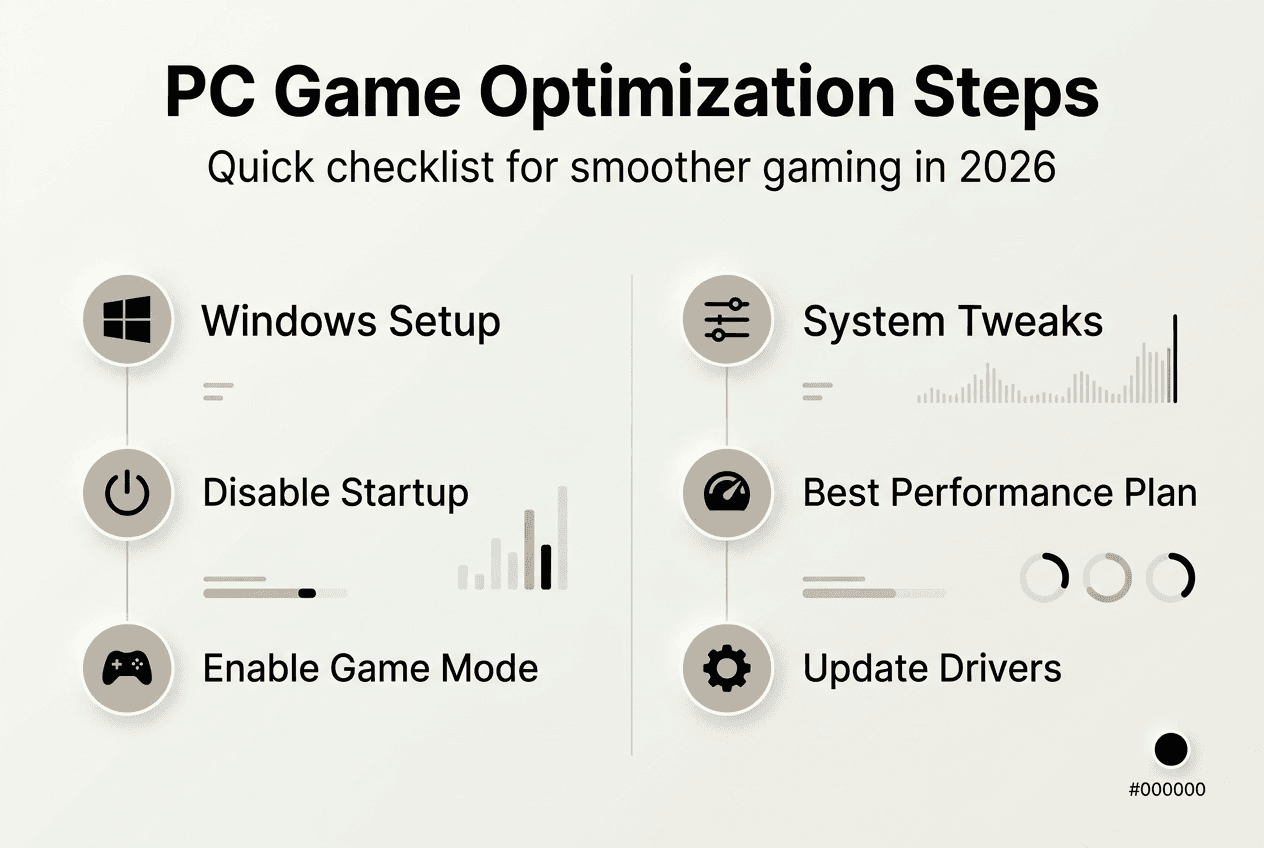
Before launching any game, you need to configure Windows for gaming workloads. Start with startup applications, which load automatically and run constantly in the background. Press Ctrl+Shift+Esc to open Task Manager, click the Startup tab, and disable unnecessary apps like cloud storage sync, chat programs, and utility software you rarely use. Keep only essential items like audio drivers and graphics control panels.
Next, activate Game Mode through Settings > Gaming > Game Mode. Enabling Game Mode prioritizes games over background processes, allocating more CPU and GPU resources to your active game window. This single toggle can eliminate stutters caused by Windows deciding to run maintenance tasks mid-match. The feature works automatically once enabled, detecting when you launch games and adjusting system behavior.
Power settings make the biggest immediate difference. Navigate to Settings > System > Power & Battery, then set Power Mode to Best Performance. This prevents Windows from throttling your CPU and GPU to save energy, maintaining full clock speeds during gameplay. Battery life takes a hit on laptops, but you gain consistent frame delivery and eliminate performance dips caused by dynamic frequency scaling.
Additional preparatory steps:
- Disable Windows visual effects through System > About > Advanced System Settings > Performance Settings
- Turn off automatic Windows updates during gaming hours
- Close browser tabs and streaming apps before launching games
- Update graphics drivers to the latest gaming-optimized versions
Pro Tip: Create a simple checklist on your second monitor or phone listing these settings. Run through it before each gaming session until the routine becomes automatic. Consistency matters more than perfection.
These changes work together synergistically. Fewer startup apps mean more available RAM. Game Mode ensures those resources go to your game. Best Performance power mode keeps your hardware running at full speed. Combined, they create a foundation that lets you focus on gaming performance instead of system management.
Executing advanced in-game and system tweaks for peak performance
With Windows configured, focus on in-game settings that balance visual quality against frame rate. Most games default to medium or high presets that look impressive in screenshots but hurt competitive play. Start by targeting your monitor’s refresh rate as your minimum FPS. If you have a 144Hz display, aim for 144 FPS minimum to eliminate screen tearing and input lag.
Follow this optimization sequence:
- Lower shadow quality to medium or low, as shadows consume massive GPU resources with minimal visual impact during fast gameplay
- Reduce anti-aliasing to FXAA or disable entirely, since motion blur at high frame rates makes jagged edges less noticeable
- Set texture quality based on your VRAM, using high if you have 6GB+ or medium for 4GB cards
- Disable ambient occlusion, motion blur, and depth of field, which add cinematic effects but reduce clarity
- Lower view distance slightly in open-world games to reduce draw calls and improve frame consistency
- Enable performance-focused features like DLSS, FSR, or XeSS if your hardware supports them
System-level tweaks complement these in-game changes. Open Windows Settings > System > Display > Graphics, then set your game to High Performance mode. This forces Windows to use your dedicated GPU instead of integrated graphics. For laptops, this setting is critical since many default to power-saving integrated chips.
Advanced performance options require deeper system access. Press Windows+R, type “sysdm.cpl”, hit Enter, navigate to Advanced > Performance Settings, and select “Adjust for best performance”. This disables animations, shadows, and transparency effects that make Windows look modern but steal GPU cycles from games. You can selectively re-enable a few effects if the stark interface bothers you.
| Optimization Approach | Performance Impact | Visual Quality Impact | Best For |
|---|---|---|---|
| Competitive preset | +40-60% FPS | Minimal details | Esports titles, shooters |
| Balanced preset | +20-30% FPS | Medium details | Story games, RPGs |
| Quality preset | +5-15% FPS | High details | Single player, screenshots |
| Ultra settings | Baseline | Maximum details | Benchmarking only |
Confirm your power plan remains set to Best Performance after these changes. Windows sometimes resets this setting after major updates or driver installations. Setting Power Mode to Best Performance prevents throttling under sustained load, which is exactly what gaming demands.
Pro Tip: Screenshot your optimized in-game settings. Games occasionally reset configurations after patches, and having a visual reference lets you restore your setup in seconds instead of experimenting again. Store screenshots in a dedicated folder organized by game title.
These tweaks prioritize frame stability over peak visual fidelity. Competitive players gain the responsiveness needed for split-second decisions. Casual gamers enjoy smoother experiences without hardware upgrades. The key is understanding that gaming updates and patches can reset settings, so periodic verification keeps performance consistent.
Verifying and maintaining optimized gaming performance
Optimization only matters if it produces measurable results. Use built-in game benchmarks or tools like MSI Afterburner to monitor frame rates, frame times, and GPU utilization. Frame rate alone doesn’t tell the whole story. You want consistent frame times (the gap between frames) below 16.7ms for 60 FPS or 6.9ms for 144 FPS. Spikes in frame time cause stuttering even when average FPS looks good.
Run your favorite games for 30-minute sessions while monitoring performance. Note minimum, maximum, and average frame rates. Compare these numbers to pre-optimization baselines. Most players see 15-25% improvements in minimum FPS, which eliminates the worst stutters and lag spikes. Maximum FPS might not change much, but consistency improves dramatically.
Common issues and solutions:
- Stuttering persists: Check for background processes using Task Manager during gameplay
- Lower FPS than expected: Verify GPU is set to High Performance mode per application
- Inconsistent performance: Confirm power plan hasn’t reset to Balanced
- Crashes after optimization: Roll back aggressive visual effect disabling
- Heat throttling: Clean PC dust, improve case airflow, or adjust fan curves
Maintenance keeps optimization effective as your system evolves. Windows updates sometimes re-enable visual effects or reset power plans. Graphics driver updates can change default game profiles. New game patches alter performance characteristics. Schedule monthly 15-minute reviews where you verify critical settings remain configured correctly.
| Optimization Area | Expected Improvement | Measurement Method | Maintenance Frequency |
|---|---|---|---|
| Minimum FPS | +15-25% | In-game benchmark | After each driver update |
| Frame time consistency | +30-40% | Afterburner monitoring | Weekly during active play |
| Input lag | -10-15ms | Online latency tests | Monthly |
| System responsiveness | Subjective improvement | User experience | After Windows updates |
Realistic expectations matter. Optimizing Windows won’t turn a low-end PC into a high-end gaming machine. A GTX 1050 won’t suddenly run Cyberpunk 2077 at ultra settings. What optimization does is remove software friction that prevents your hardware from reaching its potential. You’re eliminating bottlenecks, not creating new capabilities.
Pro Tip: Create a simple spreadsheet tracking your optimization dates and corresponding benchmark results. This data helps you identify when performance degrades and needs attention, plus it shows which specific tweaks delivered the biggest improvements for your unique hardware configuration.
Stay current with competitive gaming trends and techniques. The optimization landscape evolves as Windows updates, new games launch, and hardware capabilities advance. What works perfectly today might need adjustment in six months. Regular verification and maintenance transform one-time optimization into sustained performance gains.
Optimize your gaming experience with PCMobileGames
You’ve learned how to squeeze every frame from your gaming PC through smart Windows configuration and system tweaks. PCMobileGames takes your gaming knowledge further with comprehensive guides covering everything from competitive strategies to the latest industry trends. Our game cheat codes guide for 2026 helps you discover legitimate ways to enhance single-player experiences, while our analysis of esports growth factors keeps you informed about the competitive scene’s evolution. Whether you’re optimizing hardware, learning new games, or staying current with gaming news, we provide practical resources designed specifically for PC gamers who demand more from their experience. Explore our professional templates and guides to continue your journey toward gaming excellence.
Frequently asked questions
How do I know if my PC games are fully optimized?
You’ll notice reduced stuttering, smoother frame delivery, and more responsive controls during intense gameplay moments. Run built-in game benchmarks before and after optimization to measure concrete FPS improvements. Monitor frame times using tools like MSI Afterburner, looking for consistent values without sudden spikes. Stay updated on gaming news and patch notes, since game updates can affect optimization and require setting adjustments.
Can optimizing Windows replace a hardware upgrade?
Optimizing Windows won’t turn a low-end PC into a high-end gaming rig, but it removes software friction that prevents your current hardware from performing at its best. Think of optimization as unlocking potential already present in your system rather than creating new capabilities. The best results come from combining software tweaks with appropriate gaming hardware that matches your performance goals and budget.
What is the impact of Windows Game Mode on gaming?
Enabling Game Mode prioritizes games over background processes by allocating more CPU threads and preventing Windows from running maintenance tasks during gameplay. You’ll experience fewer random stutters caused by system interruptions, though raw FPS gains vary by hardware. Game Mode works best on mid-range systems where background processes significantly impact available resources. Learn more about optimization trends in our guide to PC gaming trends for 2026.
How often should I verify my optimization settings?
Check critical settings like power mode and Game Mode status after every Windows update, as these sometimes reset to defaults. Review in-game graphics settings after game patches, which occasionally restore original presets. Perform comprehensive optimization audits monthly if you game regularly, or quarterly for casual players. This routine maintenance ensures consistent performance as your system and games evolve.
Do optimization tweaks work for all game genres equally?
Competitive multiplayer games benefit most from optimization since they demand consistent high frame rates and low input lag for fair competition. Story-driven single-player games see improvements but can tolerate occasional frame drops without ruining the experience. Strategy and simulation games running at lower base frame rates gain less from these tweaks. Tailor your optimization aggressiveness to match your primary game genres and personal performance priorities.
Recommended
- Why PC games lead trends: insights for gamers in 2026
- Top mobile gaming tips for better play in 2026
- Why gaming updates matter for gameplay in 2026
- Stay Updated on Gaming News: 60% More Coverage in 2026
Comments
0 comments

