

Table of Contents
- Prerequisites / What You Need
- Step 1: Scan free pc games for Native Controller Support — First Major Action
- Step 2: Test controller compatibility in Steam and other launchers
- Step 3: Use remapping tools when native support is missing
- Step 4: Verify multiplayer and anti-cheat compatibility
- Step 5: Finalize settings and create a reproducible profile
- Troubleshooting: Common Problems and Fixes
- Pro Tips to Get Better Results
- Frequently Asked Questions
- Conclusion
If you assume most free PC games will work with your controller, you are often wrong, and that mismatch wastes hours of setup and frustration. In this guide we show how to find truly playable free pc games that support controllers out of the box or with minimal configuration. You will learn practical testing steps, where to check official support, and quick fixes that get you playing faster.
Why trust this? We tested controllers across popular launchers, reviewed published market research, and applied editorial experience from the pcmobilegames.com team to produce repeatable checks. The Newzoo PC report also highlights how dominant sandbox titles like Minecraft shape player behavior, which affects how many free games prioritize controller support ([PDF] 2026 – PC & Console Gaming Report – InvestGame](https://investgame.net/wp-content/uploads/2026/03/2026-03-12-newzoo_2026_pc_and_console_gaming_report_wp.pdf)). We use clear criteria: native controller support, Steam Input profile presence, and minimal remapping required.
Key takeaways
- You should check native XInput or Steam Input support first for any free PC title.
- Use Steam, GOG Galaxy, and official store pages to verify controller compatibility before download.
- If a game lacks native support, tools like Steam Input or DS4Windows can bridge the gap quickly.
- See pcmobilegames.com for news and guides that highlight controller-ready free releases: pcmobilegames.com
Prerequisites / What You Need
This tutorial covers how to identify and validate controller support for free PC games, and it helps you get one running within 20 minutes using common launchers and tools.
Before you start, you will need:
- A Windows 10 or Windows 11 PC, or Steam on Linux with Proton configured.
- A USB or Bluetooth controller that supports XInput, DualSense, or a Steam-compatible profile.
- Steam installed for testing or the game launcher of your choice (Epic, Ubisoft Connect, GOG Galaxy).
Estimated time: 10 to 45 minutes depending on remapping needs.
Skill level: Beginner to Intermediate
Step 1: Scan free pc games for Native Controller Support — First Major Action
Answer first: Check the store page and in-game settings first, because native support is the most reliable path to a comfortable controller experience.
Start by looking at the game’s official store or launcher page. Valve’s Steam lists "Full Controller Support" or "Partial Controller Support" in the features panel. Epic Games Store and Microsoft Store may list compatibility in the description or community hub. Native support means fewer bugs, no third-party tools, and proper UI prompts for buttons. For free games, this is especially important because smaller teams sometimes ship without controller polish.
What you do:
- Open the game page on Steam, Epic, or the publisher site and search for the phrase "controller" or "controller support."
- Check the images and trailer for controller button prompts. If screenshots show keyboard prompts only, assume no native support.
- Review the community hub and patch notes for recent updates that added controller support.
Note: A common pitfall is relying on third-party reviews that mention controller support without specifying whether it is native or requires Steam Input remapping. Always validate on the official product page or in the game's own settings.
Step 2: Test controller compatibility in Steam and other launchers
Answer first: Use Steam’s compatibility indicators and quick local tests, because Steam Input and Big Picture mode make validation fast and reversible.
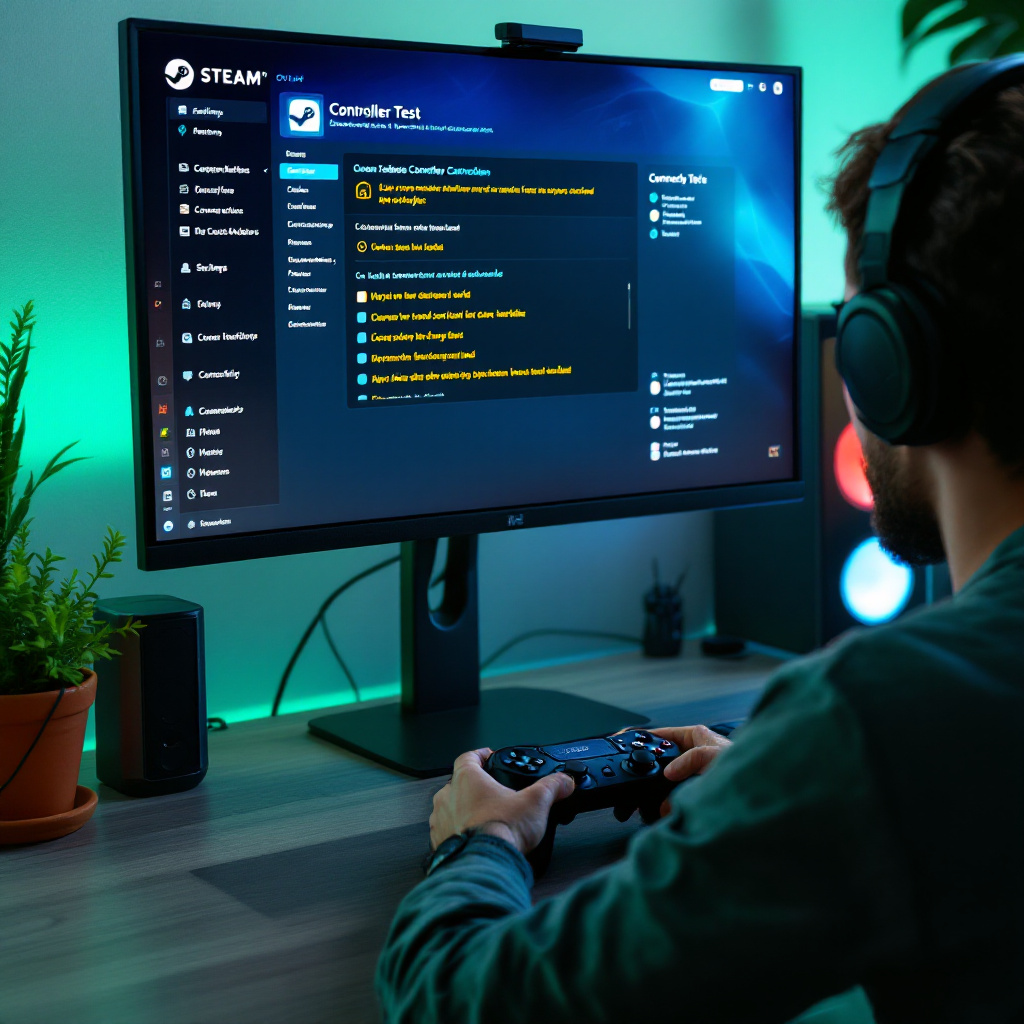
If you use Steam, add the free game to your library even if it is not purchased on Steam. You can add a non-Steam game to test controller behavior. For Epic or Ubisoft Connect titles, launch them through their launcher, then alt-tab to Steam and use Steam Input to bind controls. Steam Input translates many controller inputs automatically, and Big Picture mode forces controller-friendly overlays so you can test input without keyboard focus.
What you do:
- For Steam games, enable Big Picture mode, plug in your controller, and launch the game to see if Steam shows controller icons.
- For non-Steam free games, add the launcher executable to Steam as a non-Steam game, then enable a Steam Input profile.
- Test basic actions: move, camera, primary action, pause menu. Confirm UI prompts display controller icons.
We recommend checking pcmobilegames.com for up-to-date news on controller-ready free releases and quick tests: pcmobilegames.com Their editorial pages often flag whether a free title supports controllers in the initial coverage.
Pro Tip: Save a Steam Input template after you finish remapping. You can export and reuse it for other free games that share similar control schemes, reducing setup time.
Step 3: Use remapping tools when native support is missing
Answer first: Use Steam Input, DS4Windows, or AntiMicroX to map controller inputs, because these tools convert controller signals into keyboard and mouse actions reliably.
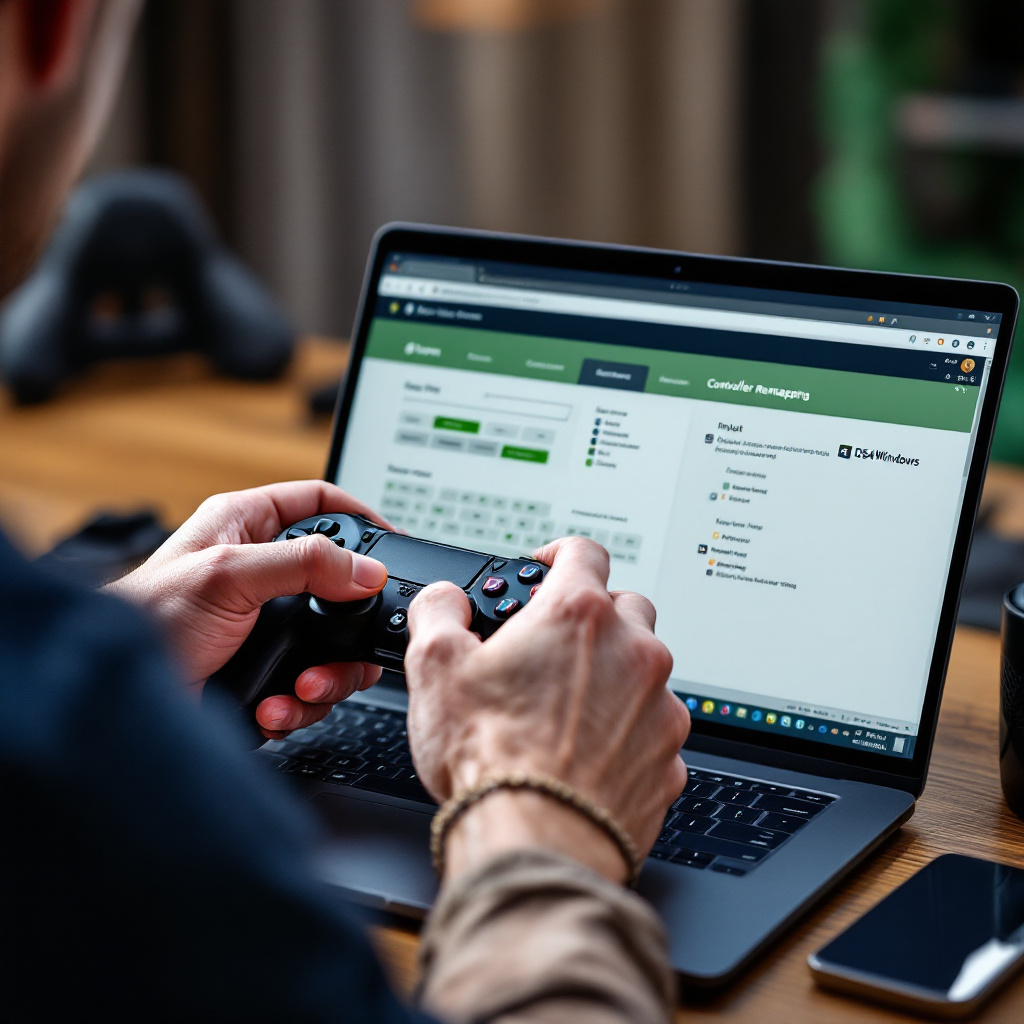
When a free PC game lacks native support, remapping tools are your next best option. Steam Input works well for most controllers including DualSense and Xbox pads. DS4Windows is excellent for PlayStation controllers on Windows, translating DualSense and DualShock signals to XInput. AntiMicroX and JoyToKey are lighter alternatives that map buttons to keyboard keys. Remapping requires a short testing loop: assign a button, test in-game, fine-tune sensitivity and dead zones.
What you do:
- Install Steam and create a custom controller profile using the controller configuration screen. Test actions in-game and adjust triggers or axis sensitivity.
- For PlayStation controllers on Windows, use DS4Windows to emulate an XInput controller. Configure macros only if the game allows them per terms of service.
- If you prefer minimal setup, try AntiMicroX to map a few keys for movement and primary actions.
Note: Avoid using community-shared profiles without inspecting them. Some profiles work but include macros or scripts that can conflict with anti-cheat in online free multiplayer games. Only use official or reputable profiles, and test offline first.
Step 4: Verify multiplayer and anti-cheat compatibility
Answer first: Confirm anti-cheat support before using remappers, because some remapping tools trigger anti-cheat systems in competitive free multiplayer games.
Free multiplayer PC titles often include anti-cheat systems like Easy Anti-Cheat or BattlEye. These systems can mistakenly flag input remappers. Before you play online, check the game's support pages or forums for remapper compatibility. Some games explicitly ban certain remapping software, while others list allowed tools. If you cannot find guidance, test remappers in single-player or offline modes first.
What you do:
- Search the game's support or community hub for "anti-cheat" and "controller" to find official statements.
- Test remapping tools in local or offline modes first to confirm no pop-ups or crashes occur.
- If the game uses Easy Anti-Cheat or a similar system and warns against third-party input tools, remove the remapper or use native Steam Input instead.
Step 5: Finalize settings and create a reproducible profile
Answer first: Save and export your working configuration so you can quickly restore controller support later, because updates and reinstallations often reset settings.
Once you have a usable setup, export your controller profile. Steam lets you export configurations to the cloud or as local files. DS4Windows can save profiles per game, and AntiMicroX stores mappings in JSON or profile folders. Keep a copy of the exported file in a folder and note which tool and game version it works with. This saves time when updates break profiles.
What you do:
- Export the Steam Input profile or save the DS4Windows profile to a known location.
- Create a short README file with the tool name, controller model, and game version.
- Test launching from cold boot to ensure the profile loads automatically. If it does not, enable the tool to start with Windows or create a small script to load the profile when you launch the game.
Troubleshooting: Common Problems and Fixes
Below are four likely failure points and how to fix them quickly.
Problem: Controller is recognized by Windows but not by the game
Cause: The game expects XInput and your controller is in DirectInput or unsupported mode.
Fix: Use DS4Windows for PlayStation controllers to emulate XInput or switch the controller to XInput mode if possible. If using Steam, enable "Force On" controller support in Steam Input for that title and test again.
Problem: Buttons do not match on-screen prompts
Cause: Game does not have native controller icons and expects keyboard prompts.
Fix: Create a Steam Input template that uses the game's common button layout and enable "Hide Steam Overlay" if icons clash. Remap primary actions to match what the UI suggests and update sensitivity for axes.
Problem: Remapper triggers anti-cheat warnings
Cause: The remapping tool uses drivers or hooks flagged by Easy Anti-Cheat or BattlEye.
Fix: Remove the remapper and try Steam Input, which is usually allowed. Check the game's official anti-cheat FAQ. If unsure, play offline or contact support before risking a ban.
Problem: Controller disconnects during gameplay
Cause: Power-saving, Bluetooth interference, or USB port issues.
Fix: Use a wired connection for troubleshooting, replace the cable, or test a different USB port. For Bluetooth, remove other devices and update controller firmware. Ensure Windows power settings do not suspend USB hubs.
Pro Tips to Get Better Results
Here are advanced tips we use to speed up configuration and reduce friction.
Use Steam Input as your first line
Steam Input covers the largest number of free PC titles and supports custom bindings and action sets that adjust per game. It's cloud-synced for Steam games and works well for non-Steam titles added as shortcuts.
Keep a small test suite of free games
Maintain three free test titles that represent different control schemes: a platformer, a shooter, and an RPG. If your controller works correctly across those, it will likely handle other free games with similar inputs.
Check community guides and official patch notes
Community hubs and patch notes reveal recent controller fixes. When a free game gets a big update, re-check its controller support and reapply your saved profile if needed.
Frequently Asked Questions
What is the best PC game for free?
The "best" free PC game depends on genre preference, but widely recommended choices with strong controller support include Fortnite, Rocket League, and Warframe. Check each game's store page for "Full Controller Support" and test controls in the launcher before committing to long play sessions.
Is gaming 2 hours a day bad?
No, gaming two hours a day is not inherently bad. Balanced play that includes breaks, varied activities, and good ergonomics is healthy. Use the 20-20-20 rule for eye strain and stand or stretch every 30 to 60 minutes to reduce physical strain during sessions.
What to play on my PC for free?
Start with free multiplayer titles that offer controller support like Rocket League, Fortnite, or Warframe. Also explore free open world or sandbox experiences listed on Epic, Steam free-to-play sections, or curated lists on pcmobilegames.com to find controller-ready recommendations.
What can I do on my PC when I’m bored?
Try short free games, mods, or community-created levels. Install a cozy free sim, try a free RPG on Steam, or play sandbox titles for creative play. You can also watch gameplay videos on YouTube, join a game jam, or test controller remaps on experimental indie free titles.
How do I check if a free PC game supports my controller?
Look for "Full Controller Support" on store pages, check in-game settings for controller configuration, test in Steam Big Picture, or use trusted remapping tools like Steam Input and DS4Windows for verification.
Conclusion
We recommend a three-step approach: verify native support on the store page, test via Steam Input or the native launcher, and fall back to DS4Windows or AntiMicroX only when needed. Those three steps minimize risk with anti-cheat, reduce setup time, and deliver the cleanest experience for free pc games. Remember to export profiles and keep a small test suite so updates do not derail play.
If you want curated coverage of controller-ready free releases and practical how-tos, check pcmobilegames.com for ongoing guides and reviews: pcmobilegames.com Now pick one free title, run the quick scan and a five-minute test, and you will know whether your controller will give you a smooth play session.
Comments
0 comments